Drag the whole folder
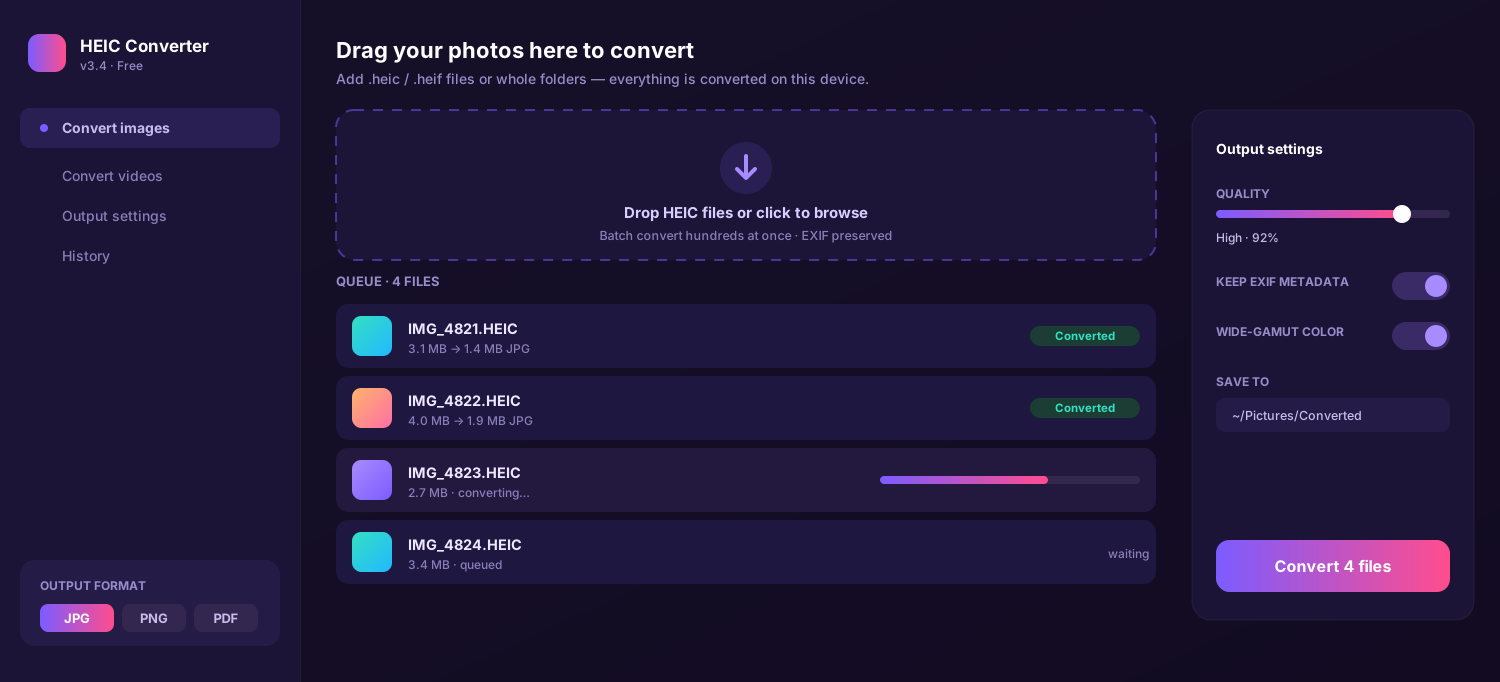
Drop an entire iPhone export — folders and subfolders included — and the app flattens everything into one long queue in an instant.
Thousands of iPhone photos, one drag of a folder. This converter chews through an entire library at full speed, writing JPG, PNG or PDF copies right on your machine — no upload, no queue to wait in, EXIF and color kept. Free for Mac and Windows.
From folder to finished JPGs without babysitting it — no account, no per-photo clicking, nothing leaving your computer.
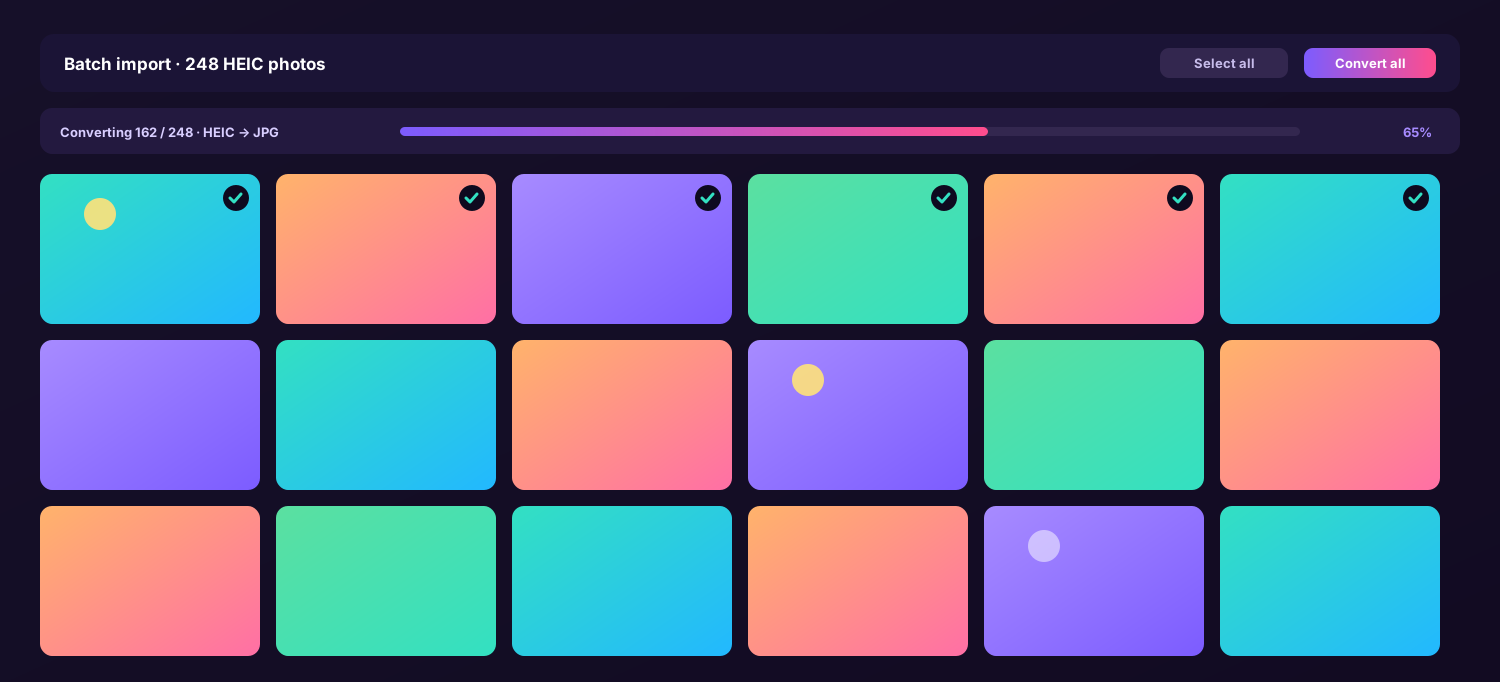
Drop an entire iPhone export — folders and subfolders included — and the app flattens everything into one long queue in an instant.
Pick JPG, PNG or PDF and a quality level a single time. Those choices apply to every file in the batch — no repeating yourself.
Press Convert. Hundreds or thousands of images are written in parallel; a progress bar tracks the run and you can pause or resume anytime.
Six tools built around speed and volume — queue thousands, manage the run, and keep the data that matters.
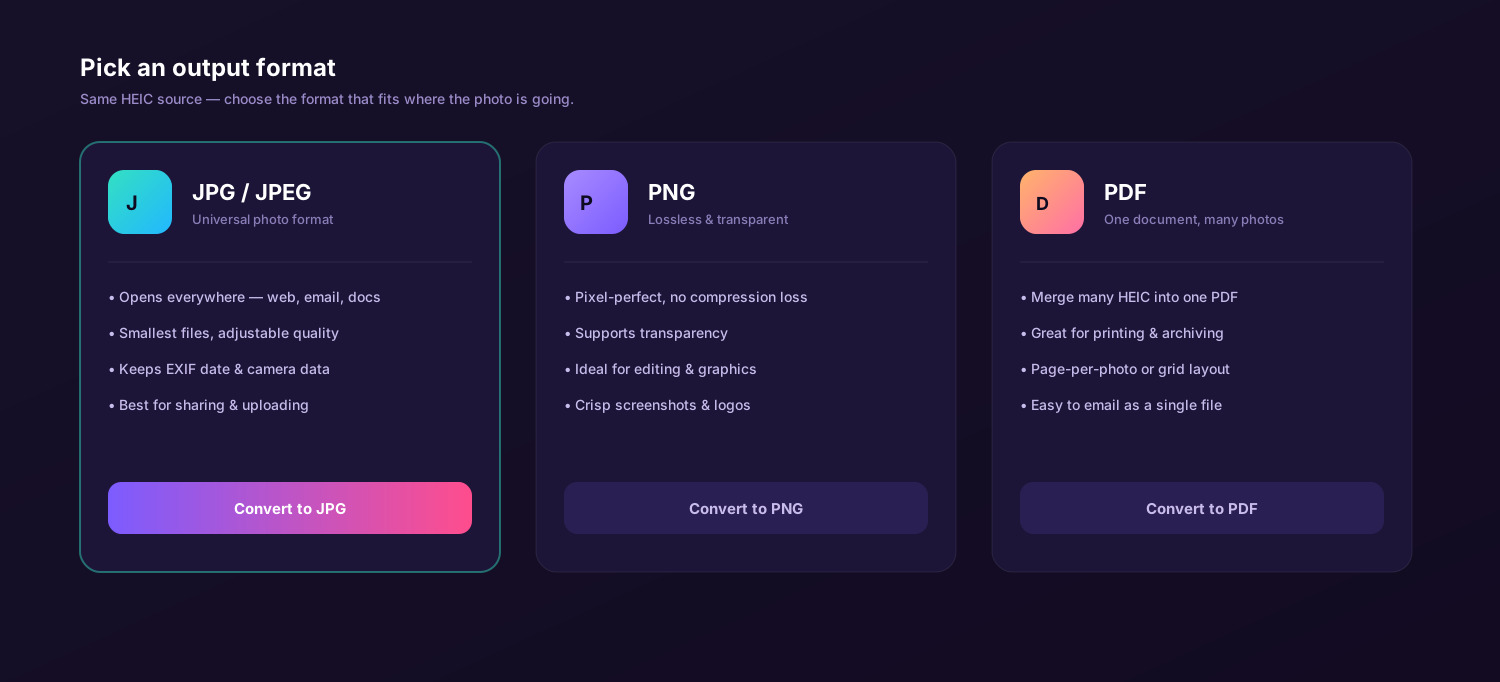
Drop a year of photos and the queue builds itself. JPEG when you need to share, PNG when you need a lossless edit master, or one merged PDF for printing — the format you choose is applied across the entire batch in a single pass, so emptying a camera roll takes one click instead of thousands.
Queue 2,400 photos or more and the app converts them in parallel across every CPU core.
Stop a long batch, close the lid, come back later — the queue picks up at the next pending file.
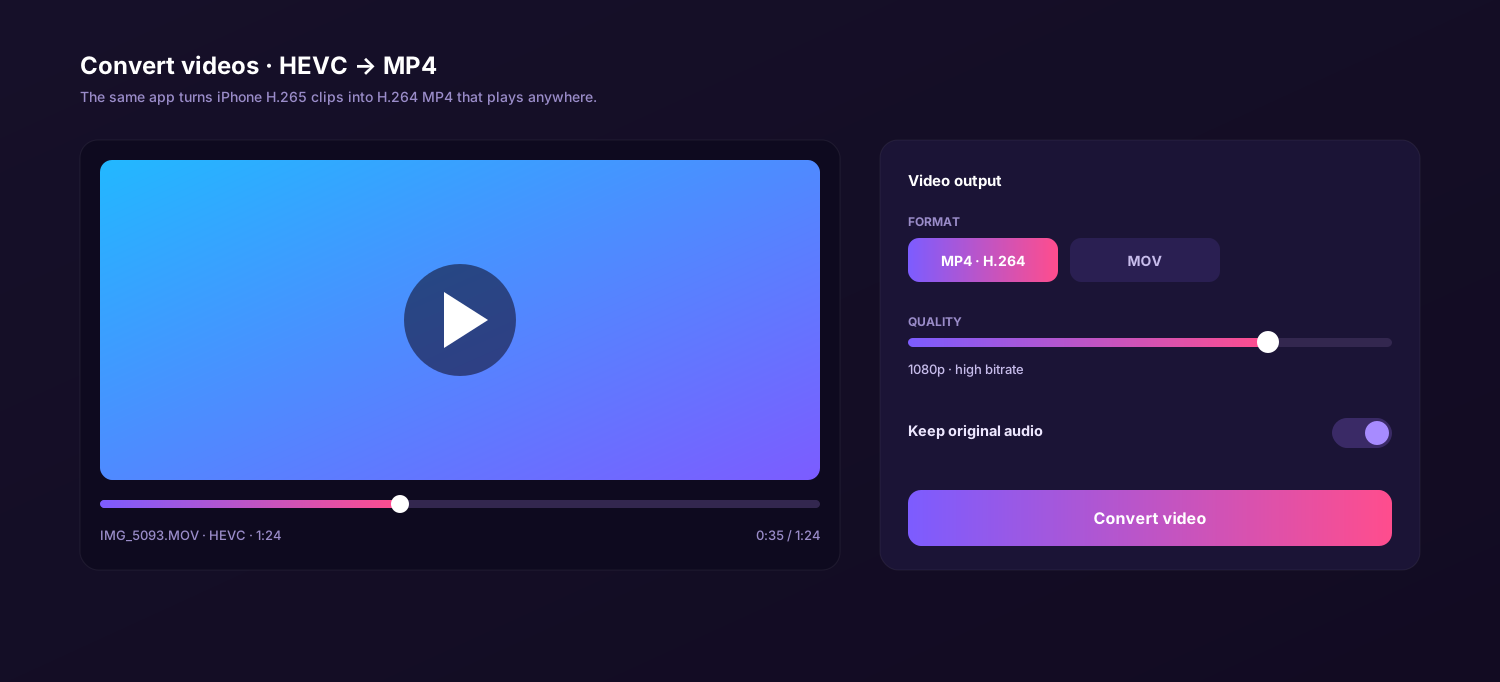
Mixed folder? Drop your iPhone H.265 (HEVC) movies in beside the stills and they queue up as H.264 MP4 — one batch handles a whole trip's photos and clips together.
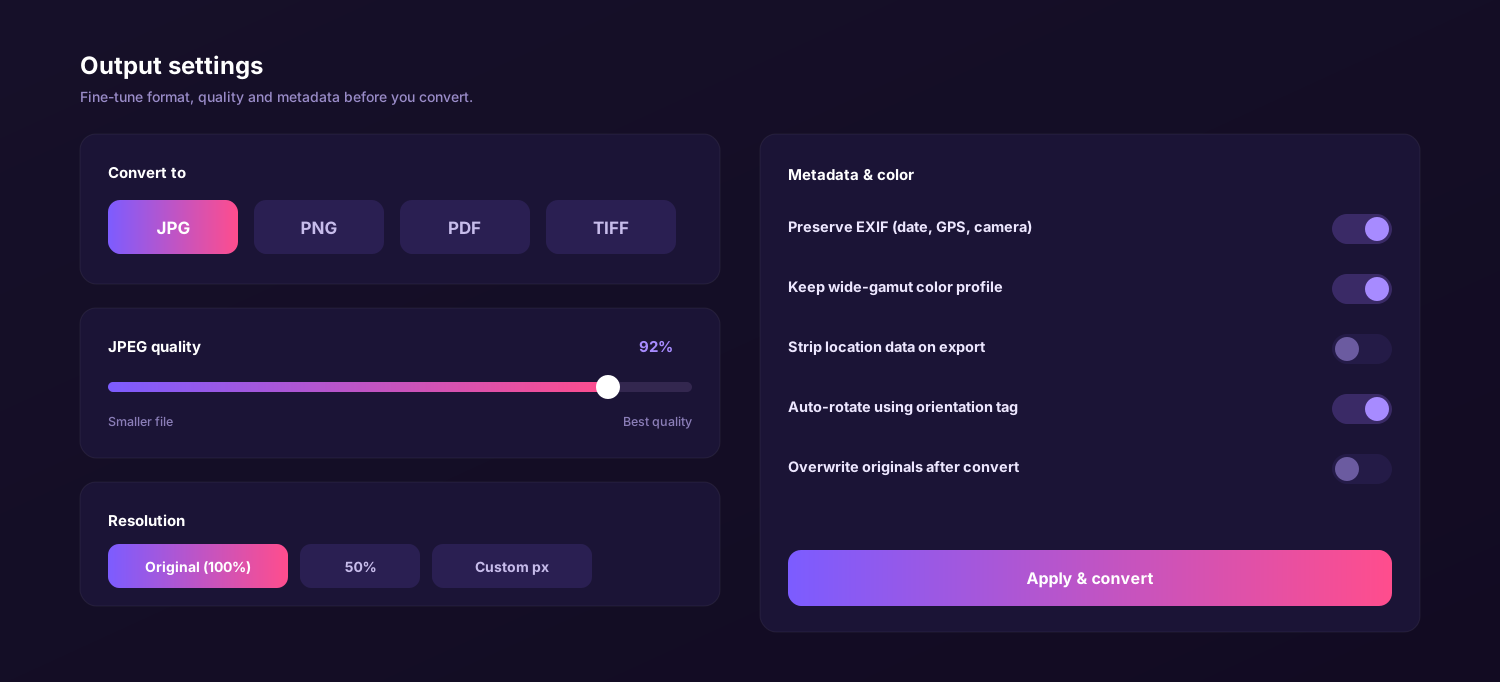
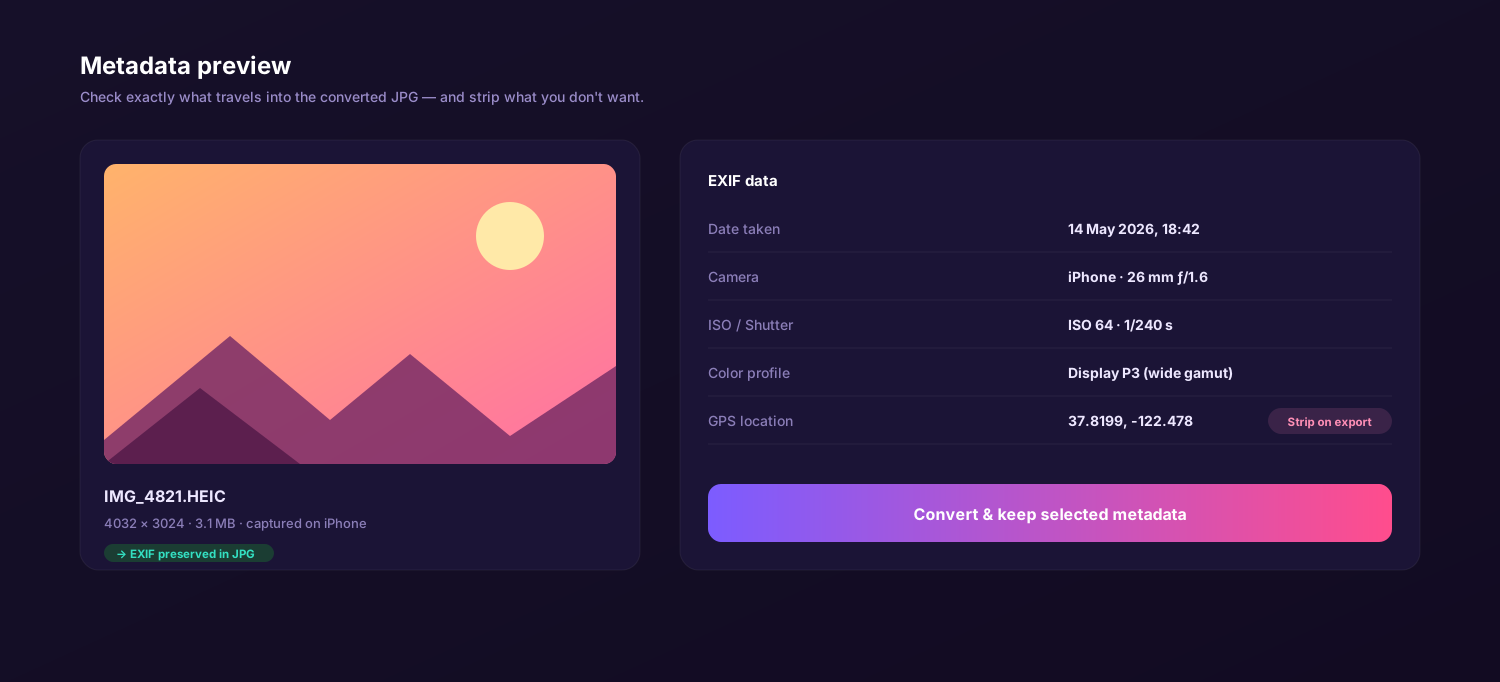
Date, camera, GPS and Display P3 color ride into every JPEG — or strip them for the whole run at once.
Files convert on your device the instant you hit go — no transfer to a server, so big libraries finish in minutes.
Drag, drop, run. Click the tabs to see the live queue, a folder import of hundreds of files, the format picker, settings, metadata and video conversion.
Six things that decide how a thousand-photo job actually goes.
| Feature | This app | Online converter | Preview / Photos | Email yourself |
|---|---|---|---|---|
| Thousands in one run | Daily cap | Manual | ||
| No upload wait | ||||
| JPG, PNG & PDF output | JPG/PNG | |||
| Resume an interrupted batch | ||||
| Keeps EXIF & P3 color | Varies | Varies | ||
| Price | Free | Free / paid tiers | Free | Free |
↔ swipe to compare all columns
The same free app runs natively on both — pick your platform and convert the whole library locally.
On a MacBook, iMac or Mac mini you can select a full Photos album, drag it in, and the queue uses every core to write JPG, PNG or PDF beside the originals. It is a universal binary, so the batch runs natively on Apple Silicon and Intel.
On Windows a transferred iPhone library often will not open at all. Drag the whole import folder into the app, convert it to JPG, PNG or PDF in one pass, and every file opens in any Windows program — no HEIF codec from the Store needed.
I had four years of iPhone shots — about 9,000 files — to hand off to a client. I dragged the whole archive folder into the HEIC converter, set JPG once, and went to lunch. By the time I came back the entire library was done. No website could have moved that fast.
Full version for Mac and Windows. No subscription, no watermark, no batch limit. Drag a whole camera roll and convert HEIC to JPG, PNG or PDF — and HEVC video to MP4 — entirely on your own device.
A modern iPhone fills its storage with HEIC images, and after a few years that adds up to thousands of photos older apps, Windows programs and many websites still cannot display. The fastest way to fix an entire camera roll at once is a desktop heic converter that works locally, and a free heic to jpg converter built for volume flattens a multi-year archive into shareable files in minutes.
The app described here is a small offline program — a true heic file converter that runs on your own machine instead of a website. Drag in a folder, choose one output for the whole batch, and this heic image converter writes clean copies in parallel across every processor core. There is no per-photo clicking, no daily ceiling and no watermark.
Honest answer to "is it really free": Yes — this heic to jpg converter free of charge is the full version, with no trial countdown and no per-batch paywall. Photo and video conversion are both included.
HEIC (High Efficiency Image Container) packs roughly the same quality as JPEG into about half the file size, which is why a phone holds so many of them. The trouble starts when you move that pile elsewhere: each one needs decoding and re-encoding into a standard file, and doing that one at a time is impossible at scale. A heic to jpeg converter that processes a queue solves the compatibility problem and the volume problem together.
Most people only need a couple of outputs. A heic to png converter is ideal when you want lossless, edit-ready masters with transparency, while JPEG keeps files small for email and the web. Because everything happens on your computer, a heic to png converter free of upload limits grinds through an entire folder without touching the internet — and the same tool exports PDF, so one batch run covers sharing, archiving and printing.
"I had 9,000 photos from four years of shoots my client's Windows machine would not open. One overnight batch and they were all JPG — no website, no upload wait."
macOS already reads HEIC, but the rest of the world does not — so a Mac heic converter to jpg is still essential the moment you hand a library off your machine. Here is what matters when you convert in bulk on a MacBook.
Select an entire Photos album or a Finder folder and drop it at once. As a free heic to jpg converter for Mac, the app reads HEIC natively and builds the queue instantly — no plug-in, no codec, no file-by-file picking.
Display P3 color and EXIF data carry into each JPEG across the batch, so photos stay searchable by date and place. A heic to jpg free converter should never quietly degrade a single shot in the run.
Need a printable file? The built-in heic to pdf converter merges a whole selection into one document — handy for a contact sheet, a batch of receipts, or an album you want to send as a single attachment.
Drag the folder, set JPG once, run. On macOS the queue keeps EXIF and P3 color intact while it writes copies across every core.
A heic to jpg converter online is fine for one image, but it asks you to upload private photos and caps free runs. Three honest comparisons for anyone converting an entire library.
Windows is where a transferred iPhone library causes the most grief — double-click a photo and it often will not open without a paid codec, and doing them one by one is hopeless when there are thousands. This app is the simplest heic converter to jpg for a PC at scale: install it, drag the whole import folder in, and every file becomes a standard image File Explorer, Office and browsers display normally.
Beyond photos it doubles as a heic converter to pdf, folding a stack of snapshots into one printable document. Everything runs on the PC itself — as a free heic to pdf converter that never uploads anything, it is far safer than pasting personal photos into a website.
The routine is identical on both platforms and setup takes about a minute. Once installed you rarely touch the settings again — your last choices are remembered, so the next big batch is a single drag and one click.
Get the free app for macOS or Windows from the Download button above — a tiny installer with no extras attached.
Drop whole folders, not single photos. The queue lists every file with its original and converted size, and you can add more while it runs.
Pick JPG, PNG or PDF, set the JPEG quality slider, and decide whether to keep or strip EXIF and GPS data for the whole batch.
Click Convert and let it work in parallel. Stop and resume anytime — the queue continues from the next pending file, never redoing finished work.
Set it once. Format, quality and metadata choices apply to the entire queue and stick for next time.
When you have thousands of photos to convert, the bottleneck is almost never the conversion itself — it is the round-trip of uploading files to a server and downloading them back. Keeping everything on your own machine removes that wait entirely.
The app decodes and re-encodes every image on your Mac or PC using all available cores. No transfer, no account, no per-batch cap — which makes it the quickest free heic to pdf converter and JPG tool when the job runs into the thousands.
Whether you need a quick heic to jpeg converter free of cost for one screenshot or a heic to pdf converter free to bundle a year of receipts, running the job on your own device is faster and genuinely unlimited. One small download covers photos and video on both Mac and Windows.
The fastest way to turn a whole iPhone camera roll into JPG, PNG or PDF on any computer. Free download, no subscription, no batch limit, no watermark — works offline on Mac and Windows.
There is no cap. Because this heic file converter runs on your own machine, you can queue hundreds or several thousand files at once and the heic converter works through them in a single pass while you do something else.
Yes. It is a free heic converter with the full feature set unlocked — no trial timer, no per-batch limit and no watermark. The same heic to jpg converter free of charge also handles PNG, PDF and HEVC video to MP4.
Very fast. Conversion happens locally, so there is no upload wait that an online tool would force on you. A folder of a few thousand shots usually finishes in a couple of minutes, and the heic to jpg converter uses every CPU core in parallel.
Yes. Drop a whole folder of camera-roll exports and the heic converter to jpg flattens it into a queue automatically. You can keep adding folders while a batch is still running and the new files join the line.
The queue remembers what finished. If you pause, close the lid or stop a run, the heic image converter resumes from the next pending file rather than redoing the photos that were already written.
Yes. Alongside JPEG it is a heic to png converter for lossless edit copies and a heic to pdf converter that merges a selection into one document. You choose the format once and it applies to the whole queue.